
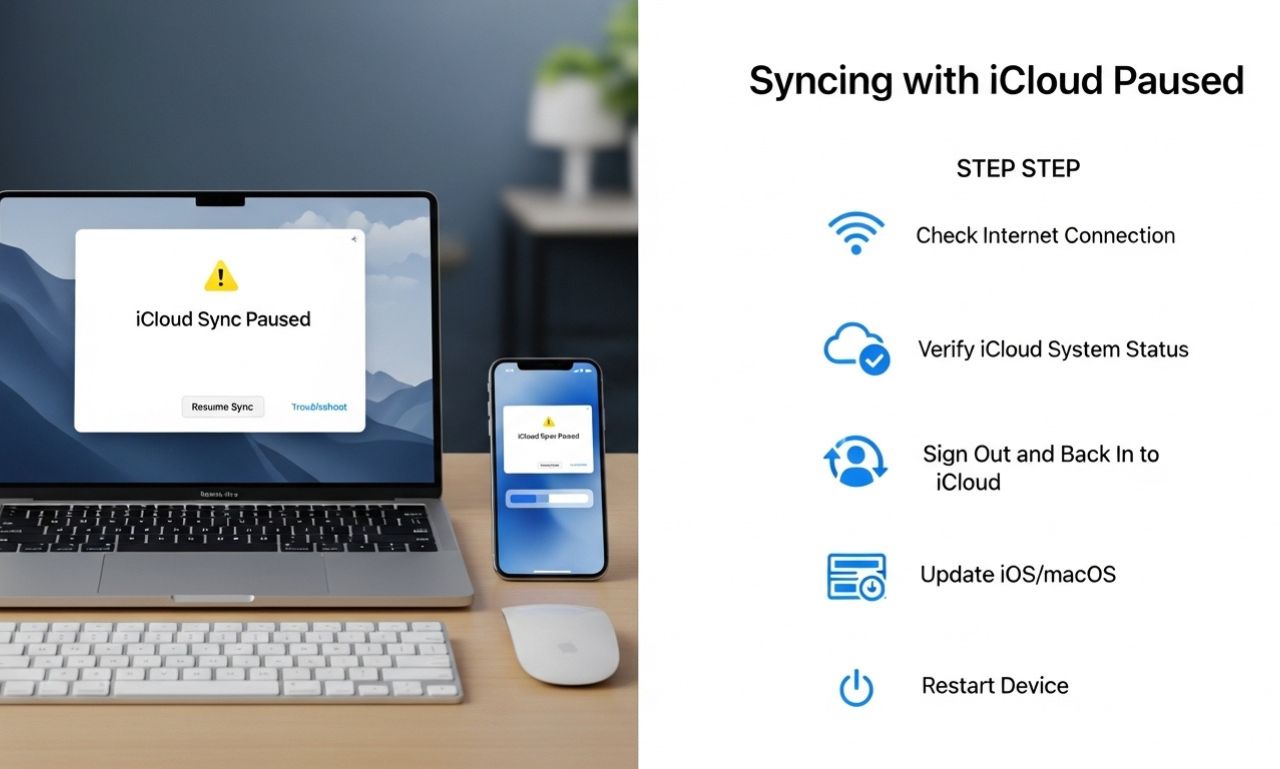
If you’ve ever opened your iPhone or Mac and seen the message “Syncing with iCloud Paused”, you’re not alone. This notification can be frustrating—especially when you rely on iCloud to back up photos, contacts, messages, and important documents.
In this complete guide, you’ll learn why syncing with iCloud gets paused, what it means, and how to fix it quickly and permanently.
What Does “Syncing with iCloud Paused” Mean?
When you see the message “Syncing with iCloud Paused,” it means your Apple device has temporarily stopped uploading or downloading data to or from iCloud. This interruption can affect:
-
Photos
-
Contacts
-
Messages
-
Notes
-
iCloud Drive files
-
Device backups
The pause may happen automatically due to settings, connectivity issues, low storage, or system restrictions.
Common Reasons Why iCloud Sync Is Paused
Understanding the cause is the first step toward fixing the issue. Below are the most common reasons:
1. Poor or No Internet Connection
iCloud requires a stable internet connection to sync. If your Wi-Fi is weak or disconnected, syncing will pause automatically.
2. Low Power Mode Is Enabled
When Low Power Mode is activated on your iPhone, background activities—including iCloud syncing—may be paused to save battery.
3. Low iCloud Storage
If your iCloud storage is full, syncing will stop. Apple provides 5GB of free storage, which fills up quickly with photos and backups.
4. Device Storage Is Full
Even if your iCloud has space, your iPhone or Mac needs enough local storage to process syncing.
5. Apple ID Issues
If there’s a problem with your Apple ID login or verification, iCloud services may stop syncing.
6. System Glitches or Bugs
Sometimes, minor software bugs in iOS or macOS can cause syncing interruptions.
How to Fix “Syncing with iCloud Paused” on iPhone
Follow these step-by-step solutions to resume syncing.
1. Check Your Internet Connection
-
Go to Settings > Wi-Fi
-
Ensure you’re connected to a strong network
-
Try switching between Wi-Fi and mobile data
-
Restart your router if needed
A stable connection often resolves the issue instantly.
2. Disable Low Power Mode
Low Power Mode can pause background syncing.
To turn it off:
-
Open Settings
-
Tap Battery
-
Toggle off Low Power Mode
After disabling it, give your device a few minutes to resume syncing.
3. Restart Your Device
A simple restart can fix temporary system glitches.
-
Press and hold the power button
-
Slide to power off
-
Turn the device back on after 30 seconds
Check if iCloud syncing resumes.
4. Check iCloud Storage
To verify your storage:
-
Open Settings
-
Tap your name at the top
-
Select iCloud
-
Check storage usage
If storage is full:
-
Delete unnecessary backups
-
Remove large files
-
Upgrade your iCloud plan
5. Sign Out and Sign Back In
Sometimes refreshing your Apple ID session helps.
-
Go to Settings
-
Tap your name
-
Scroll down and tap Sign Out
-
Restart device
-
Sign back in
Make sure you remember your Apple ID password before doing this.
6. Update Your iPhone
Outdated software may cause syncing issues.
-
Go to Settings > General > Software Update
-
Install the latest iOS version
Updates often fix iCloud-related bugs.
How to Fix “Syncing with iCloud Paused” on Mac
If you see this issue on a Mac, try these steps:
1. Check Internet Connectivity
Ensure your Mac is connected to Wi-Fi.
2. Check iCloud Settings
-
Click Apple Menu
-
Select System Settings
-
Click your name
-
Open iCloud
-
Ensure syncing options are enabled
3. Restart Your Mac
A restart clears background syncing errors.
4. Check Available Storage
Open System Settings > General > Storage and confirm you have space available.
How to Resume Paused iCloud Photo Syncing
If the issue specifically affects photos, follow these steps:
-
Open Settings
-
Tap Photos
-
Ensure Sync this iPhone is enabled
-
Connect to Wi-Fi
-
Plug your phone into a charger
Large photo libraries may take time to sync, especially after being paused.
When iCloud Syncing Pauses Automatically
There are situations where Apple automatically pauses syncing, including:
-
During system updates
-
When battery level is critically low
-
When switching between networks
-
During Apple server maintenance
You can check Apple’s system status on the official Apple website to see if iCloud services are down.
Advanced Troubleshooting Tips
If the problem continues, try these advanced solutions:
Reset Network Settings
-
Go to Settings > General > Transfer or Reset iPhone
-
Tap Reset
-
Choose Reset Network Settings
Note: This will remove saved Wi-Fi passwords.
Force Sync Manually
To manually trigger iCloud sync:
-
Toggle iCloud options off and back on
-
Open the app (Photos, Notes, etc.)
-
Pull down to refresh if applicable
How to Prevent iCloud Sync from Pausing Again
To avoid future interruptions:
-
Keep at least 20% device storage free
-
Upgrade iCloud storage if needed
-
Avoid using Low Power Mode frequently
-
Maintain stable Wi-Fi
-
Keep your device updated
-
Regularly restart your device
Preventive maintenance keeps iCloud running smoothly.
Frequently Asked Questions
Why does iCloud syncing pause overnight?
If your device disconnects from Wi-Fi or enters Low Power Mode, syncing may pause automatically.
Does pausing iCloud syncing delete my data?
No. Your data remains safe. Syncing simply stops temporarily.
How long does iCloud take to resume syncing?
It depends on your internet speed and the amount of data. Small files sync quickly, while large photo libraries may take hours.
Is “Syncing with iCloud Paused” a serious issue?
In most cases, it’s minor and easily fixable by adjusting settings or reconnecting to Wi-Fi.
Final Thoughts
Seeing the message “Syncing with iCloud Paused” can be alarming, but it’s usually caused by simple issues like low battery, poor internet, or storage limits. By following the troubleshooting steps in this guide, you can quickly restore syncing and ensure your data stays backed up and up to date.
If the problem continues after trying all fixes, contacting Apple Support may be the best next step.
Keeping your device updated, connected, and properly maintained will help prevent this issue from happening again—and keep your digital life running smoothly.